 EaseMate AI
Product editor
Add a slow camera move to a product still so a launch post feels more active without rebuilding the scene.
Use an image to image AI generator for the cleanest product frameStill image → short motion
An image to video generator from EaseMate AI turns a strong still image into a short moving scene. Add direction, review the transformation, and create social clips, presentations, or visual ideas without starting from a blank timeline.
Try image-to-video creationCompare the inputs
The source is a single visual record; the result is a timed sequence. Knowing that structural difference makes it easier to choose a clear frame and write a motion direction that the model can follow.
| Attribute | A: source image | B: generated video |
|---|---|---|
| Frames | One fixed frame | A sequence over time |
| Timing | No built-in duration | Duration and pacing |
| Motion | No movement | Camera or subject motion |
| Composition | Precisely controlled | May shift between frames |
| Audio | Not included | Can be added afterward |
| Text and logos | Usually stable | Can deform during motion |
| Best use | Reference and composition | Engagement and storytelling |
Set the right expectation
Still-to-motion generation preserves the subject and broad visual idea, but it does not preserve every pixel. Fine textures may soften, hands can change shape, and small lettering may become unstable. For a more controlled starting point, compare the image-to-image workflows first, then animate the cleanest result.
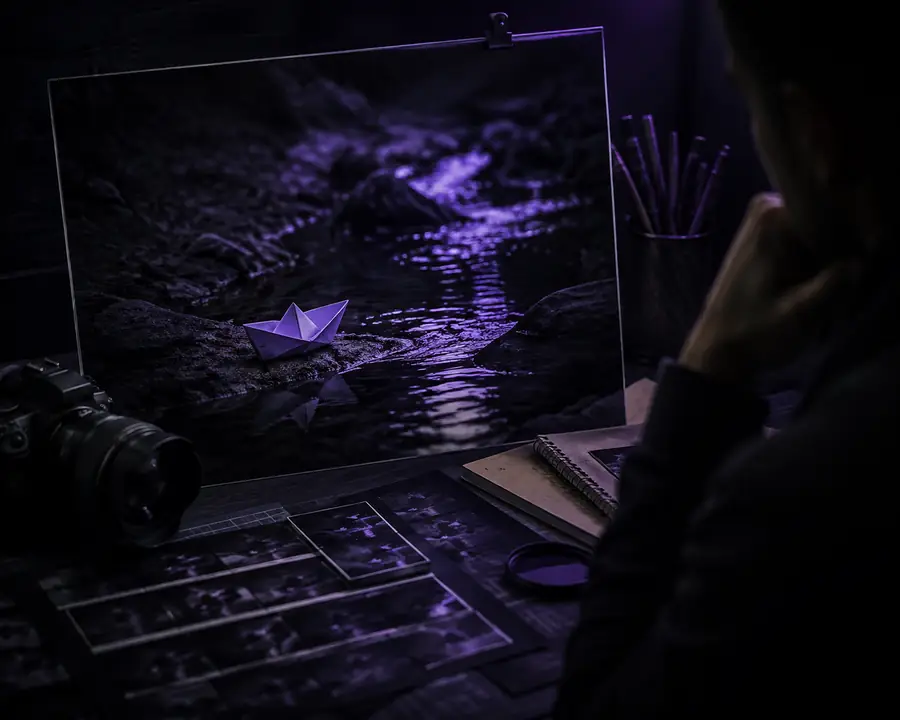
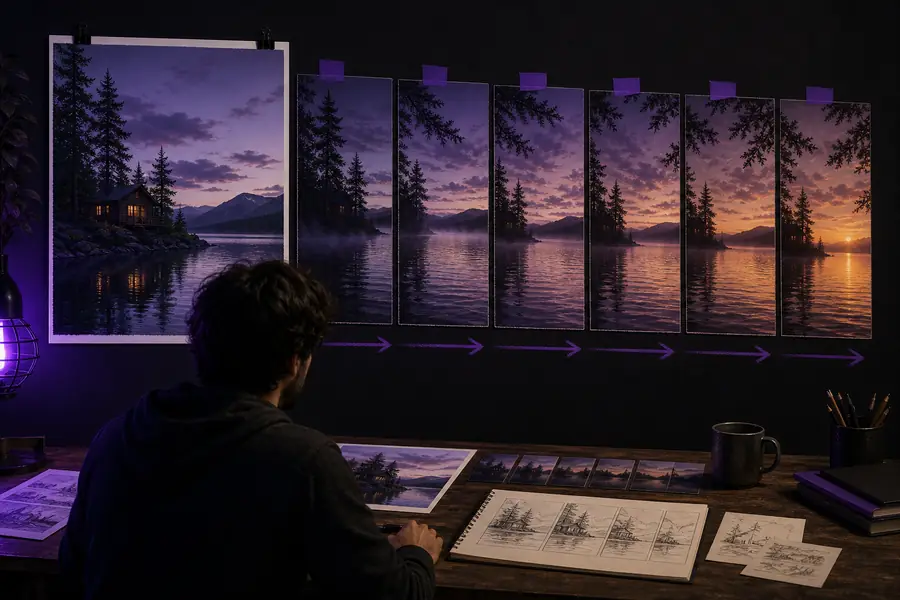
Keep the prompt focused on one motion, such as a slow push-in, a gentle turn, or fabric moving in the breeze.
The tool block
EaseMate AI works best when the visual goal is specific. Choose the kind of scene you need, describe a restrained movement, and keep the first experiment short enough to inspect quickly.
Add a slow camera move to a product still so a launch post feels more active without rebuilding the scene.
Use an image to image AI generator for the cleanest product frameGive a diagram or historical image gentle movement for a presentation opener or study recap.
Prepare a sharper image-to-image reference before animatingAnimate a thumbnail concept into a short transition, intro visual, or mood-setting cutaway.
Refine the thumbnail with an image to image AI generator firstCreate a simple motion poster from a campaign image for a feed, story, or event announcement.
Build the campaign artwork with an image-to-image workflowPlan a small test
Use the slider to estimate output size, a free-demo planning estimate, and the editing time a short batch may save.
Quality control
Watch the first, middle, and final moments instead of judging only the thumbnail. Confirm that the subject remains recognizable, the camera follows the intended direction, and the export has no distracting warps or broken text.
Fingers, jewelry, fur, and small textures may change as the scene moves.
Workaround: crop tightly and use a simpler movement.
Extended clips give inferred motion more time to accumulate changes in perspective or shape.
Workaround: make several short clips and edit them together.
Logos, labels, and captions can deform when they are treated as part of the moving image.
Workaround: add final typography as an overlay during editing.
Final checks
A short review loop keeps each image-to-video experiment useful, even when the first result needs another pass.
Make sure the subject, crop, and visual hierarchy begin where you expect.
Look for unwanted camera jumps, melting edges, or details that appear and disappear.
Confirm the final dimensions, playback length, and readability before sharing.
Yes. Free AI tools can turn a still image into a short moving clip, although limits may apply to resolution, duration, queue time, or available generations. EaseMate AI gives you a simple place to test a frame, review the motion, and decide whether the result is ready to edit or share.