 EaseMate AI
Short-form creator
Establish a recognizable visual style with an the EaseMate AI image generator concept, then give a selected frame movement for a social post or opening shot.
the EaseMate AI image generatorEaseMate AI video tools
EaseMate AI gives creators, students, marketers, and everyday storytellers a focused way to move from an idea or still image toward a short video concept. This page explains what the video route is best at, how it differs from the broader workspace, and where a practical workflow still needs human judgment.
Try the video tool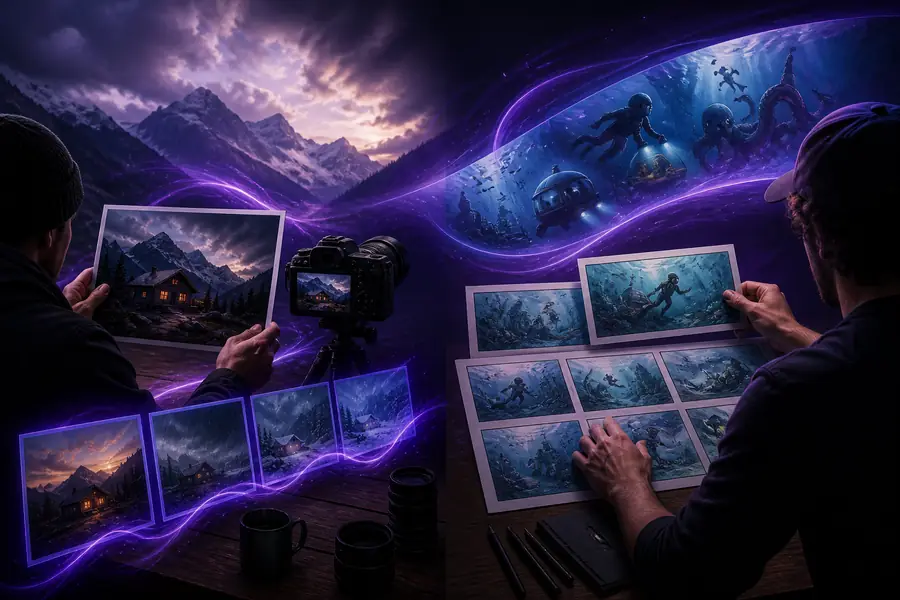
The dedicated EaseMate AI video route narrows the experience around motion, timing, and visual direction. The general EaseMate AI workspace remains better when the task begins with research, conversation, document work, or a mixed creative brief.
Start with a subject, setting, movement, mood, and the kind of moment you want the viewer to notice.
Use a clear still image when composition, character identity, or a product frame matters more than open-ended exploration.
Check pacing, continuity, and the most important visual detail before deciding whether to refine or export the idea.
A focused creative route
EaseMate AI keeps the video journey compact instead of asking you to assemble a full production stack. Its strongest value is turning a visual intention into a reviewable motion idea quickly.
Establish a recognizable visual style with an the EaseMate AI image generator concept, then give a selected frame movement for a social post or opening shot.
the EaseMate AI image generatorTurn a diagram, historical scene, or science concept into a short visual recap after using EaseMate AI chat to clarify the narration.
EaseMate AI chatGive a product still a sense of motion for a landing-page teaser, campaign draft, or internal creative review without beginning in a complex editor.
image-to-video workflowPrototype a hook, transition, or visual beat before committing to a longer production plan and a complete channel package.
EaseMate AI for YouTubeFor dialogue-heavy planning, connect this route with the broader chat workspace. For artwork-first projects, the image creation workspace can help you prepare a stronger starting frame.
From still idea to moving scene
A reliable EaseMate AI workflow starts small. Ask for one clear action, preserve the main subject, and use the first result as a direction check rather than expecting a finished sequence immediately.
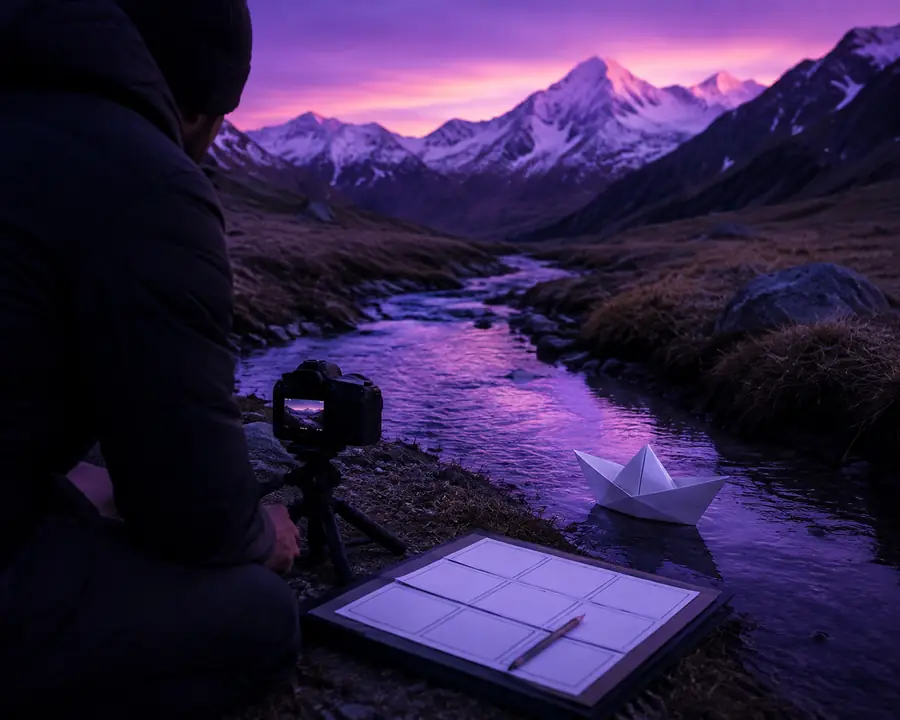
Keep the subject and action in the same sentence: “A paper boat glides across a sunlit puddle while the camera follows from above.” Short, concrete direction gives the EaseMate AI video workflow a useful visual target.
Set expectations before you render
EaseMate AI is useful for ideation and short visual studies, but it is not a replacement for every part of a production workflow. These boundaries help you decide when to refine here and when to finish elsewhere.
The route is designed around generating and reviewing a clip, not arranging many layers, keyframes, or detailed audio tracks.
Workaround: export the strongest direction and complete sequencing in your preferred editor.
Character details, object placement, and camera logic can become less consistent as a single scene grows more ambitious.
Workaround: describe one short action at a time and reuse a strong reference frame.
Small labels, logos, and dense on-screen copy may not remain perfectly legible during motion.
Workaround: add final titles, captions, and brand marks after the visual clip is approved.
Blurry, crowded, or poorly lit inputs give the video tool less dependable visual information to preserve.
Workaround: crop to the subject, improve clarity, and remove distracting background details first.
It is a focused entry point for turning prompts or still images into short visual motion concepts, rather than a general-purpose conversation or document workspace.
Yes. A clear image can provide composition and subject context, while your written direction explains the movement, camera feel, or atmosphere you want to explore.
Name the subject, one main action, the setting, lighting or mood, and the camera relationship. Concrete direction is usually easier to review than a paragraph of unrelated adjectives.
Motion has several variables at once, so a first result may capture the mood but miss the exact action. Simplifying the prompt or improving the source frame gives the next attempt a clearer target.
Workflow reference
Use the dedicated route when movement is the main question. Choose the general EaseMate AI workspace when your project needs several kinds of assistance before the visual direction is ready.
| Attribute | Video route | General EaseMate AI |
|---|---|---|
| Primary goal | Motion and visual direction | Mixed tasks and open-ended assistance |
| Best starting input | Prompt or still image | Prompt, question, file, or creative brief |
| Useful output | Short clip concept | Text, research notes, images, and plans |
| Scene continuity focus | Central to the workflow | Not the primary focus |
| Document support | Not the main use | Better fit for document-led work |
| Ideal next step | Refine the motion or edit the clip | Continue planning, writing, or research |
Continue with the right tool